
Open the export
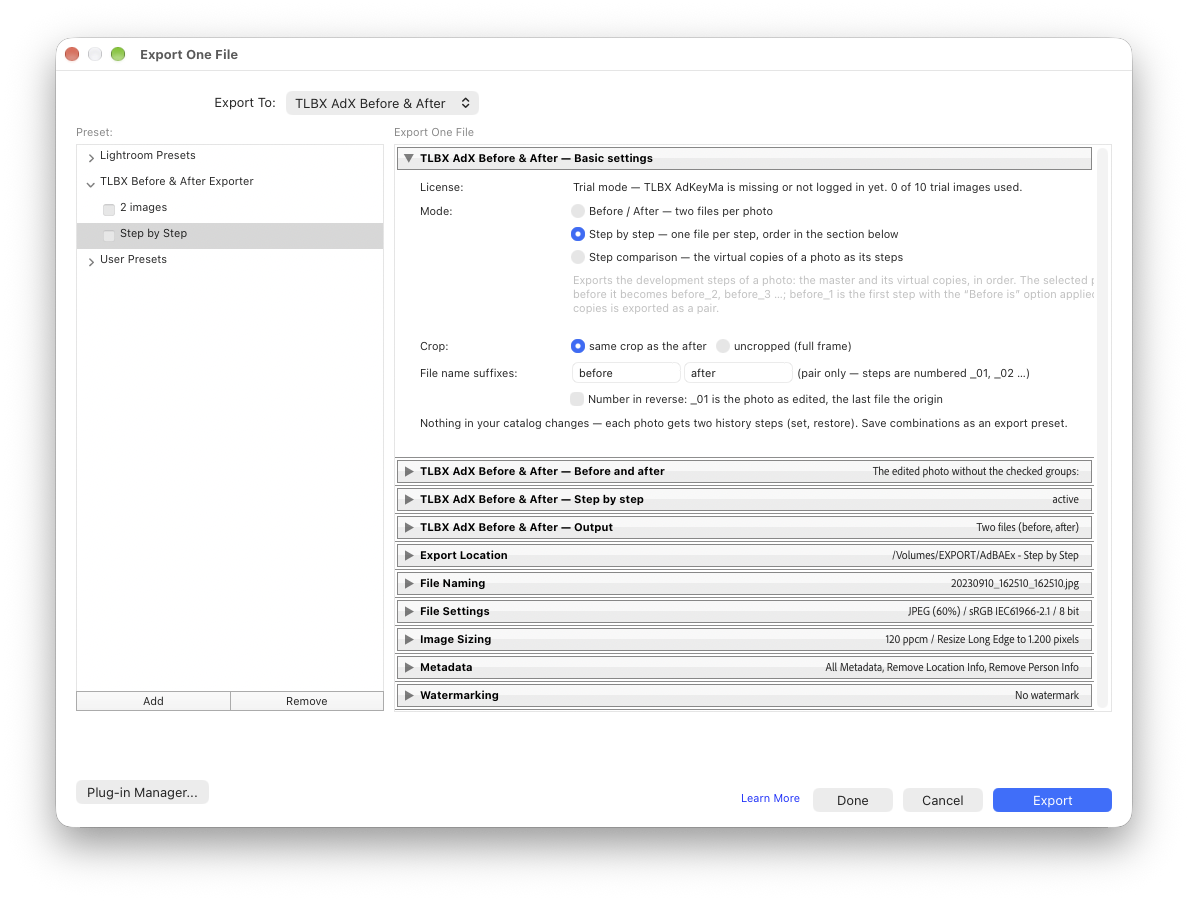
Select photos in the Library module, then File › Export — or simply ⇧⌘E on the Mac, Ctrl+Shift+E on Windows. At the top of the dialog choose “Export to: TLBX AdX Before & After”. The first section shows your licence (or the trial mode with the remaining trial images) and the mode.

Choose the mode
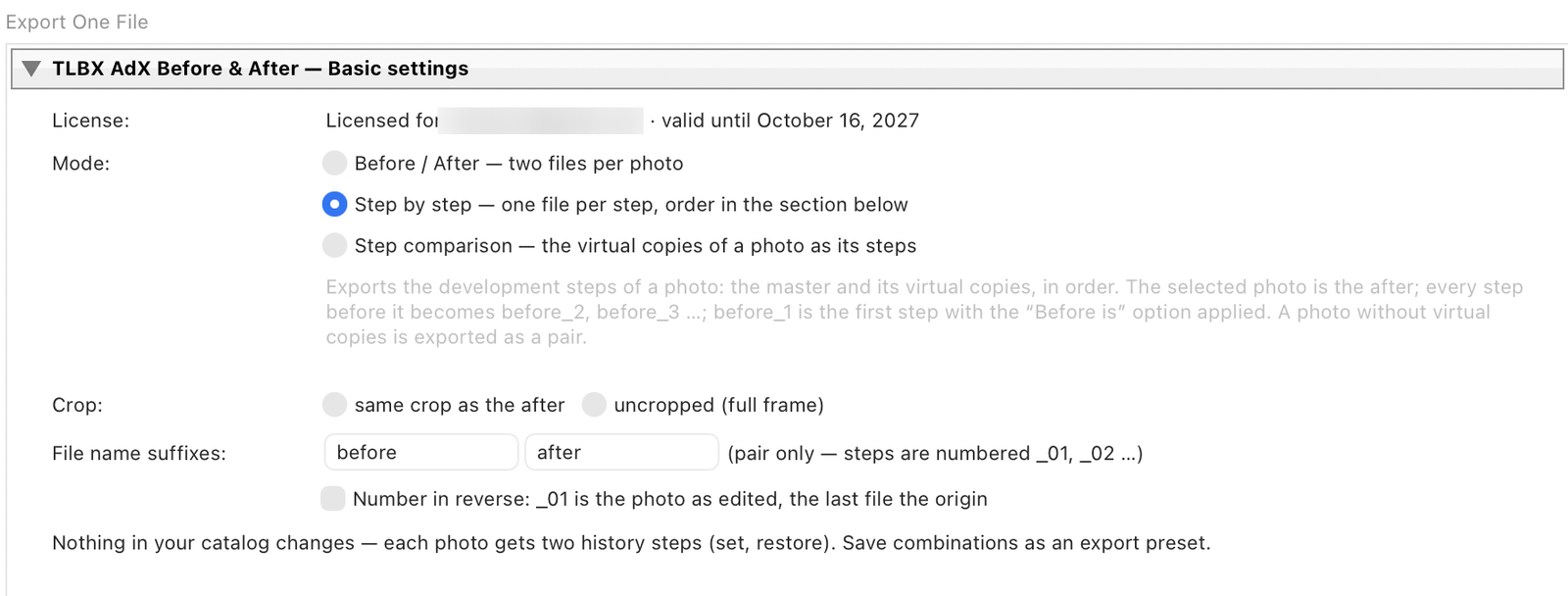
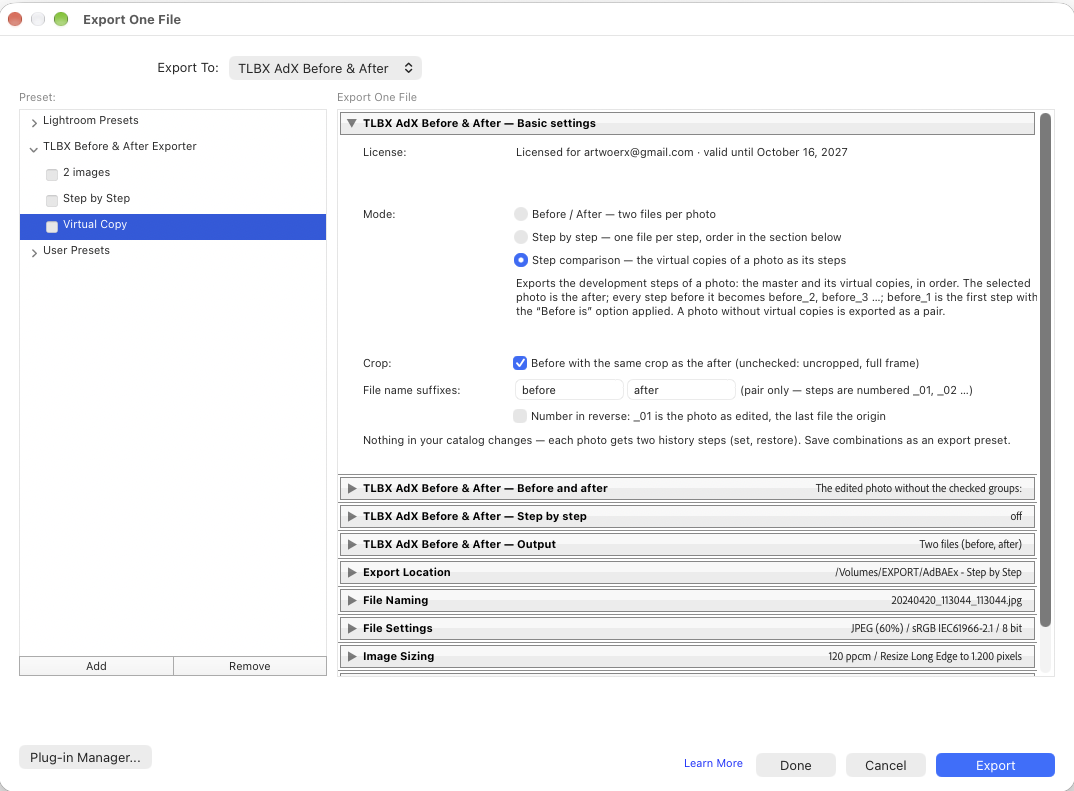
In the plugin’s Basic settings section: the licence line at the top, below it the mode — Before / After, Step by step or Step comparison. What each mode does exactly and what you set for it is explained below the image. In the same section: the Crop checkbox (checked: the before with the same crop as the after, otherwise the full frame) and the file name suffixes for the pair.
Two images per photo: the before as you chose it, the after as edited — named with the suffixes. Optionally a composed comparison image with labels in addition.
- Define the before — step 3
- Output: two files or one image, labels, format — step 4
- File name suffixes (here in this section)
Each photo yields a numbered sequence: _01 without edits, then one more image per checked group, finally the finished photo. For workshops, courses, portfolio.
The virtual copies of a photo become its stages: the selected photo is the after, every copy before it a stage. Without copies the photo is exported as a pair.
- Create virtual copies in the catalog, one per stage — step 6
- Before for the first stage — step 3
- Select the last copy when exporting

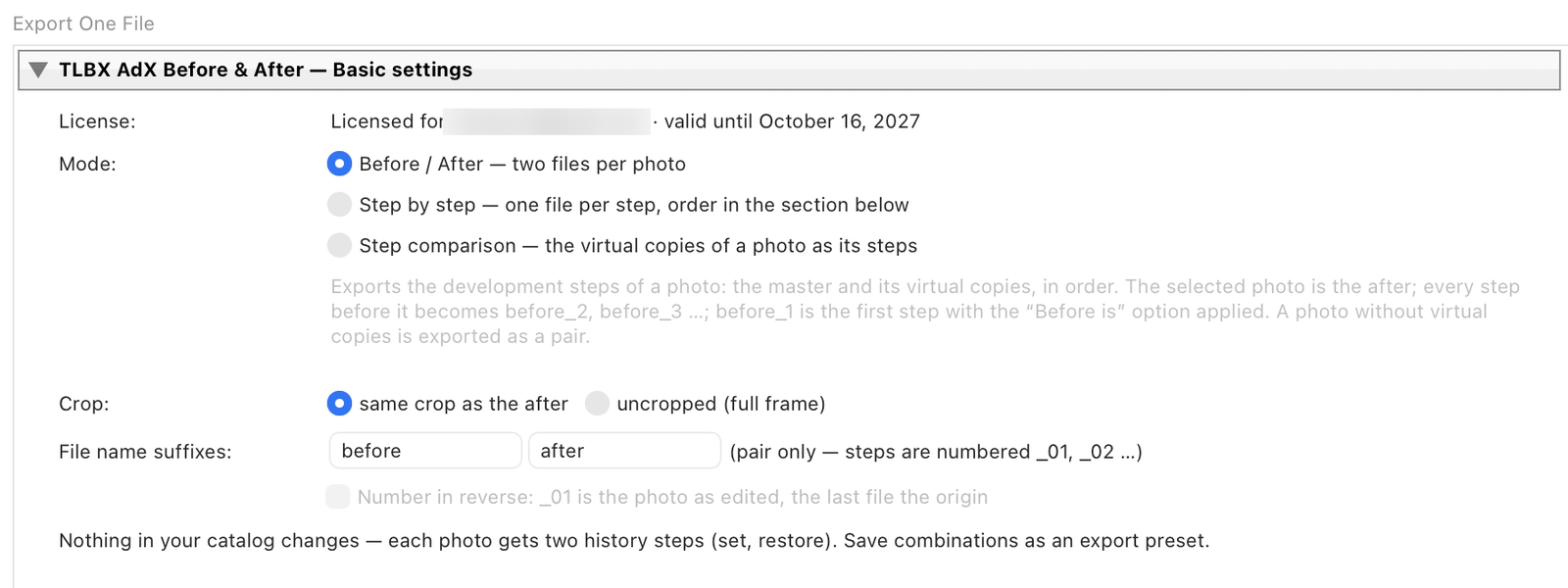
Define the before
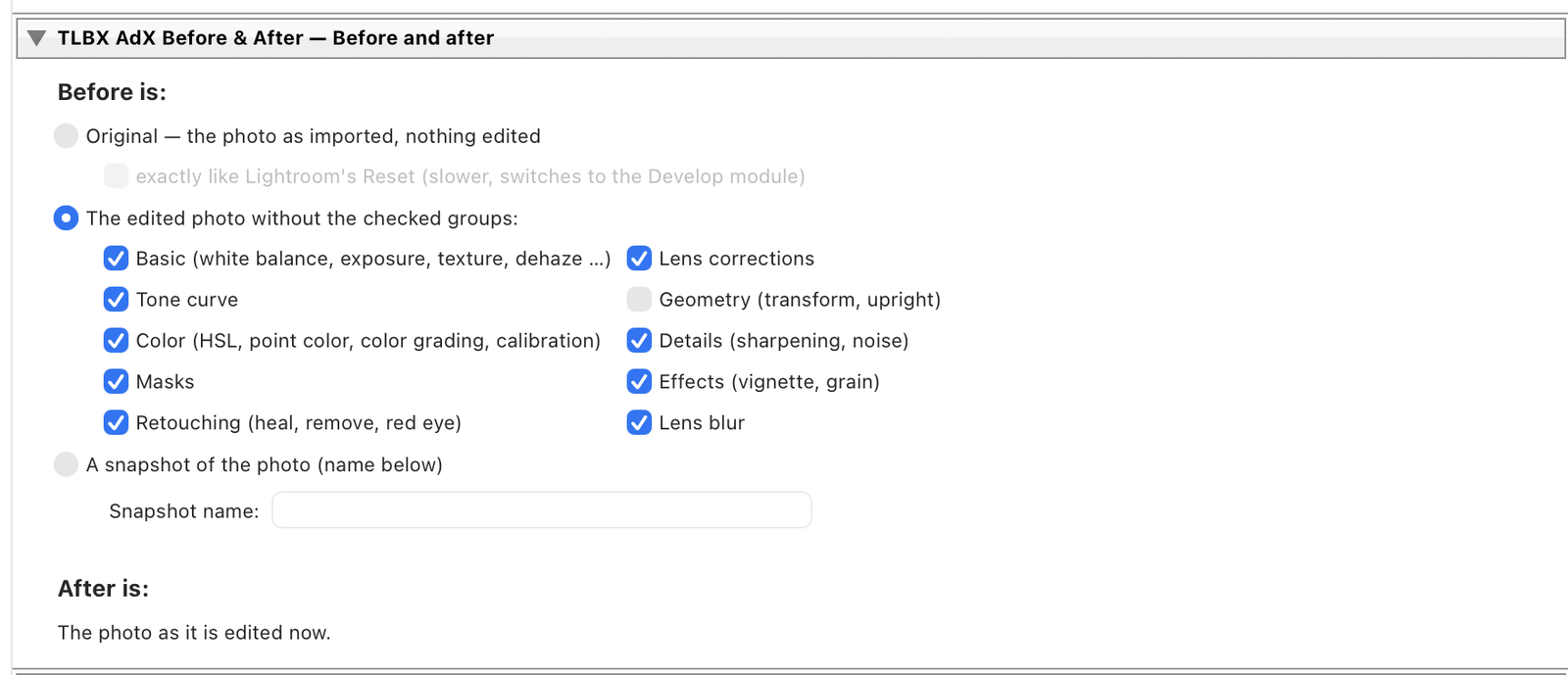
Applies to all modes. In the Before and after tab you define what “before” means: the original as imported, the photo without the checked groups (basic, tone curve, colour, details, lens corrections, geometry, effects, retouching, masks, lens blur) or a named snapshot.

Before / After mode: output
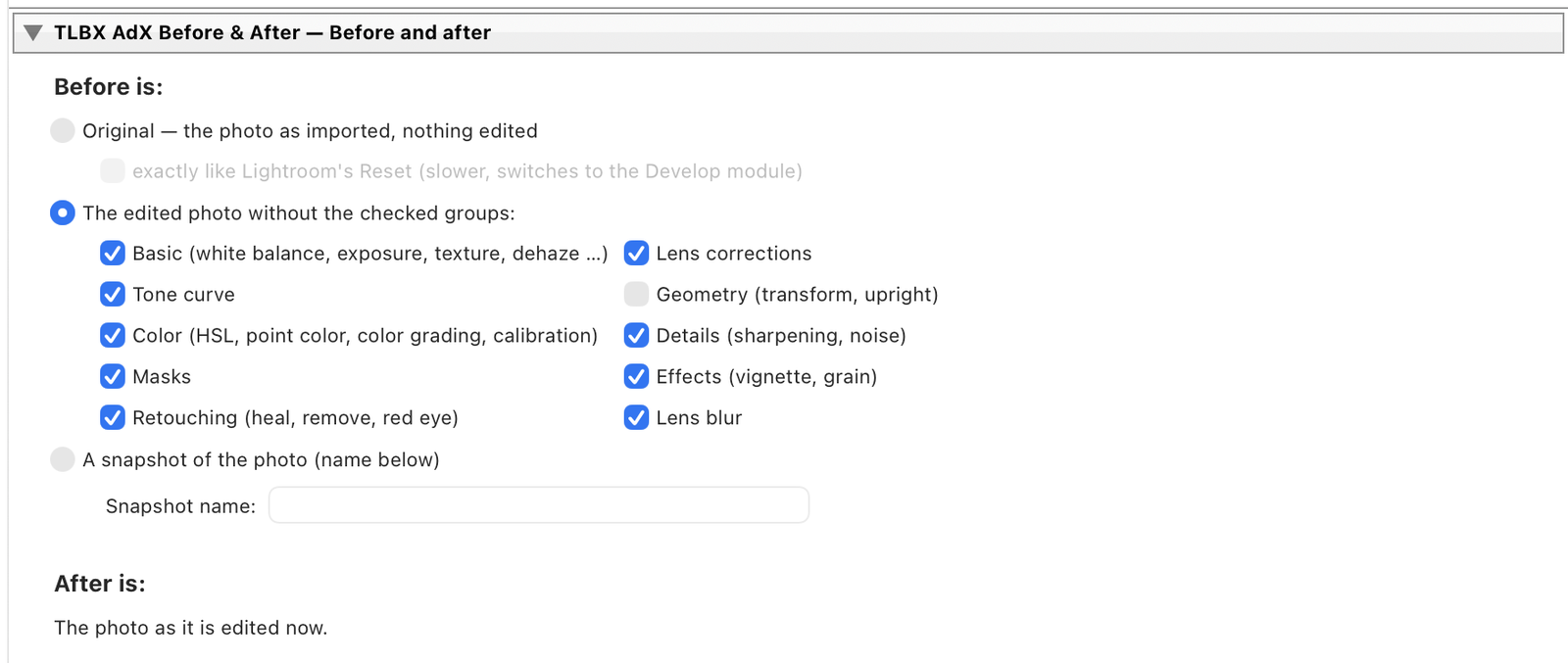
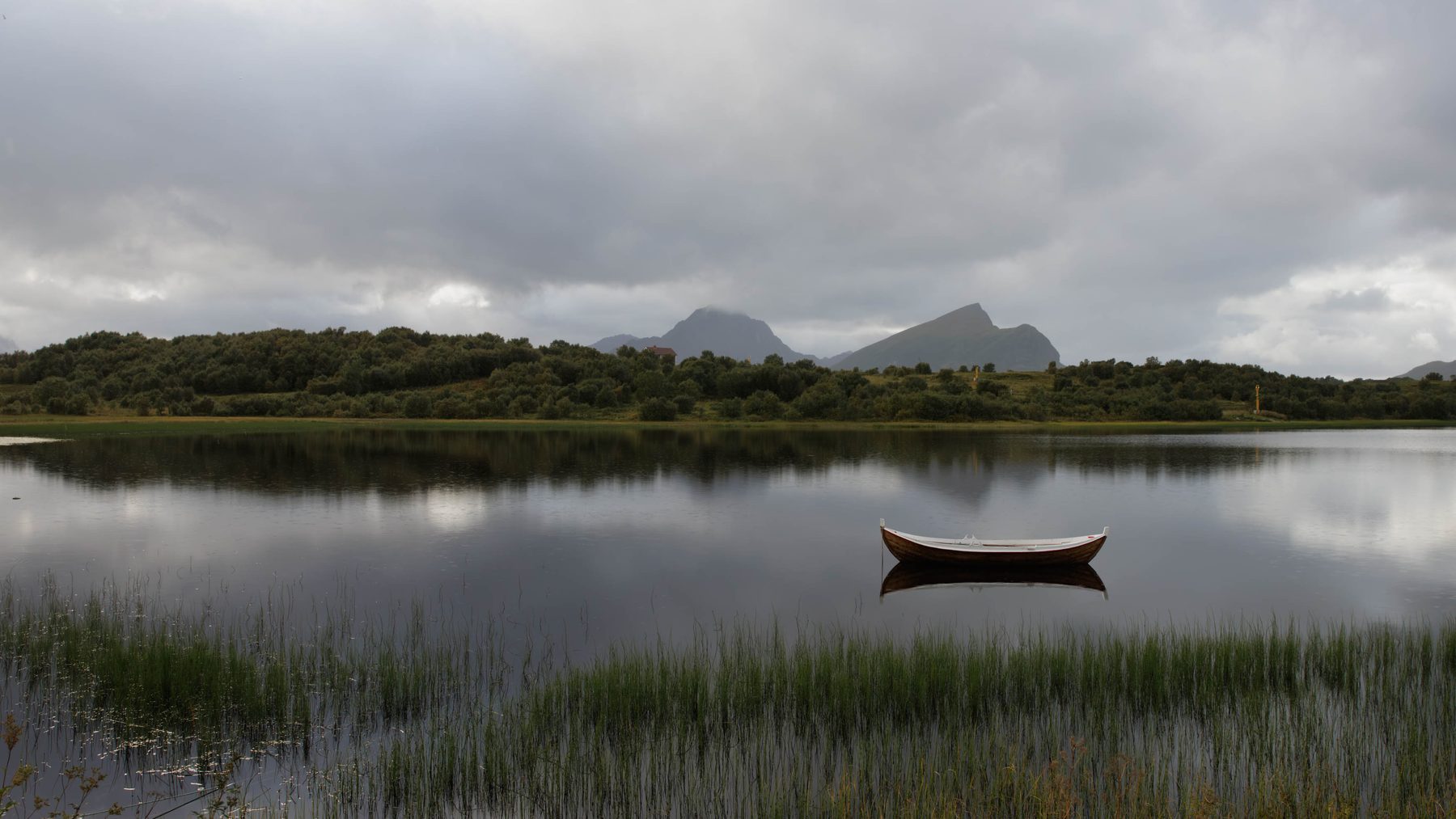
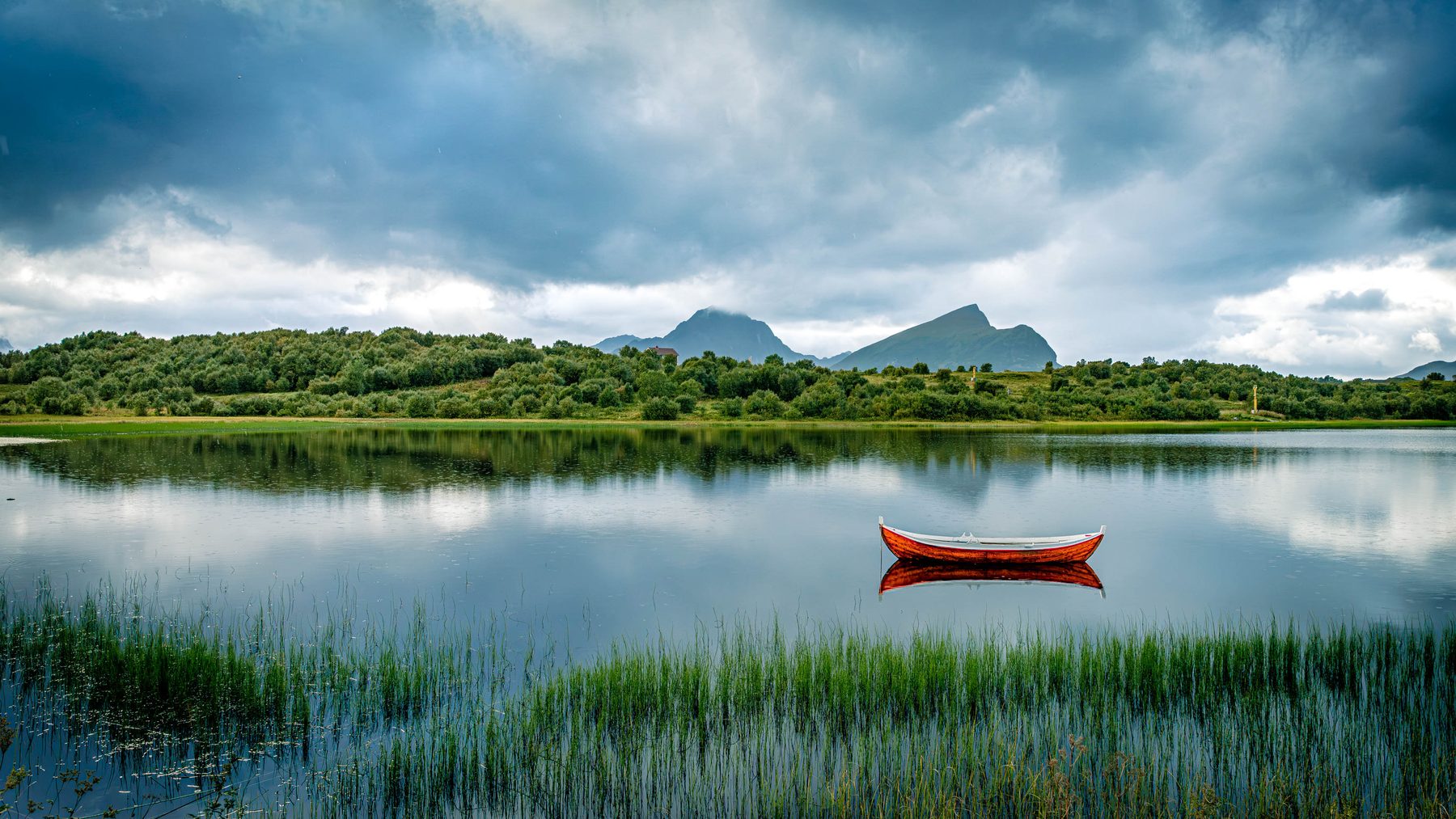
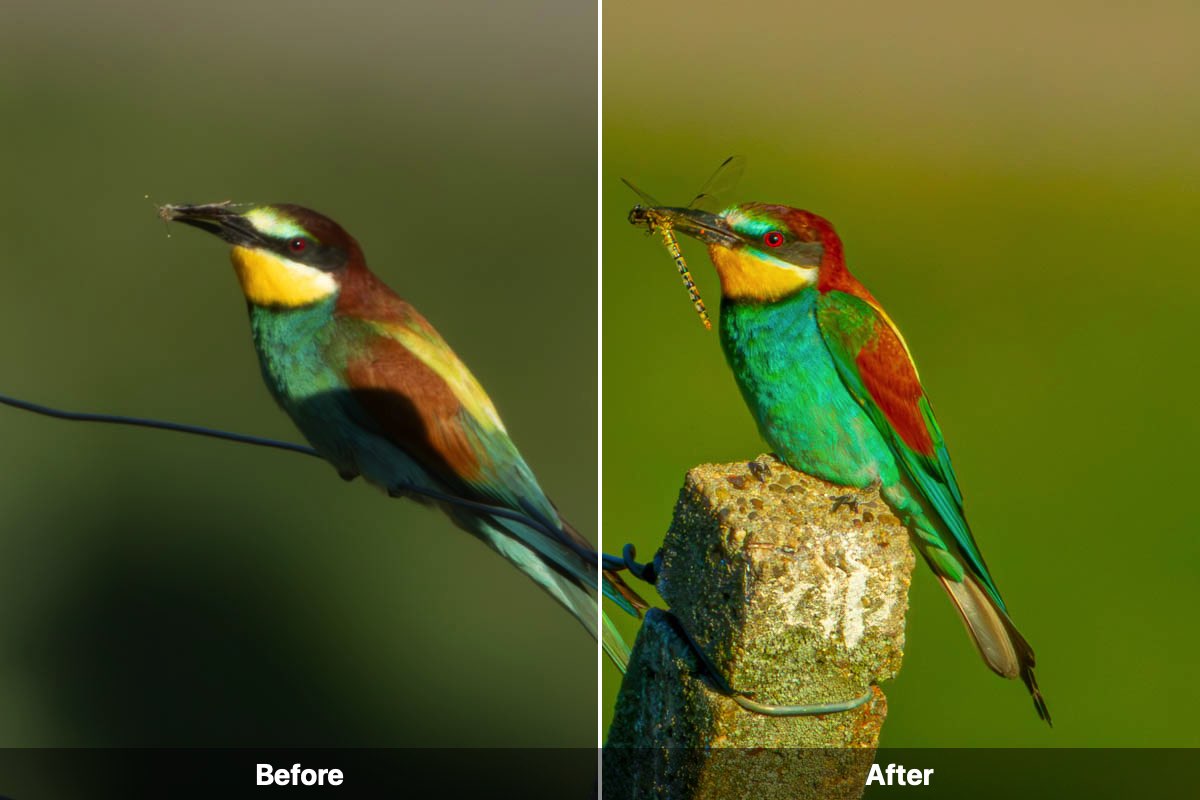
The default in the Output section is “Two files (before, after)” — as in the image: afterwards there are two images per photo in the export folder, before and after with the suffixes from step 2, nothing else. If you want one finished comparison image, choose “One image” — side by side, stacked (before on top) or split (before left, after right). Only then do labels, format and “keep single files” become active: the composed JPEG is created in addition, the two single files remain only if the box is ticked. Below, the real result of an export with “Two files”.
 BEFOREAFTER
Example: the real result of an export with “Two files” — drag to compare. Below, the two files as they sit in the export folder:
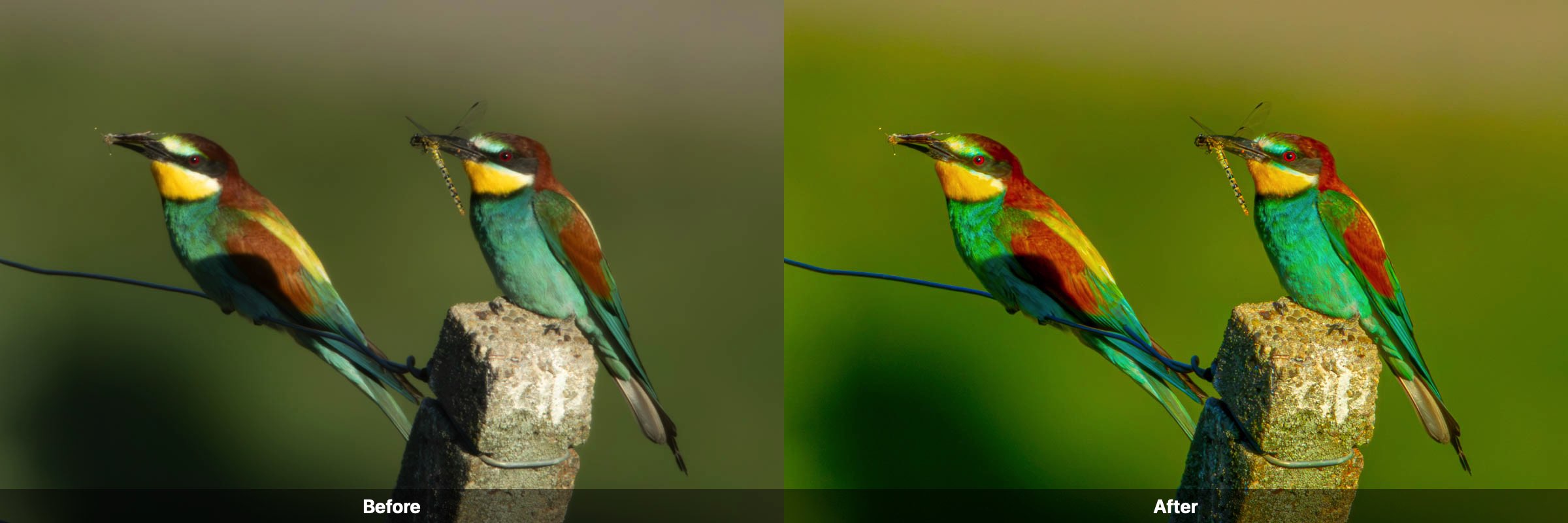
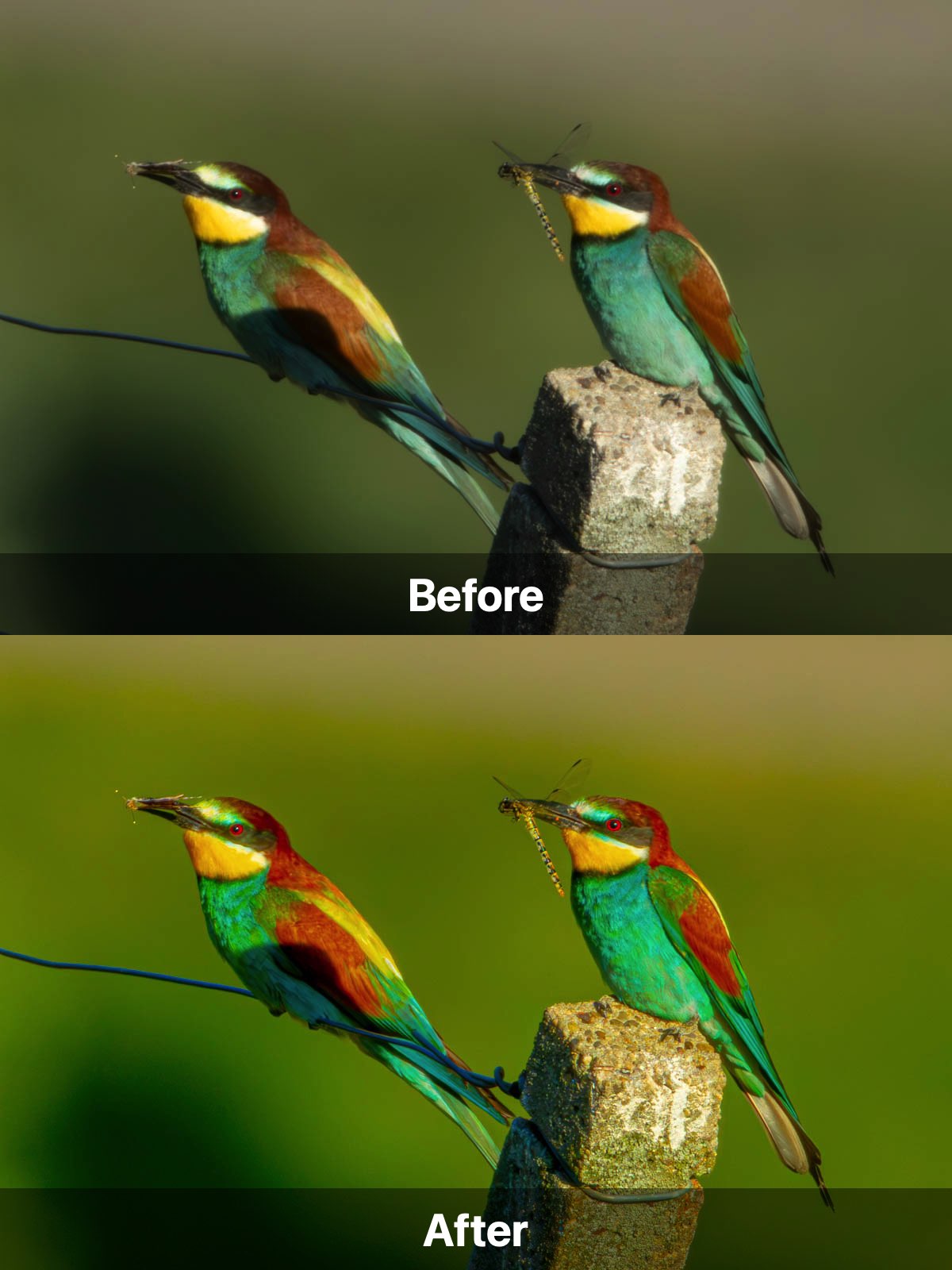
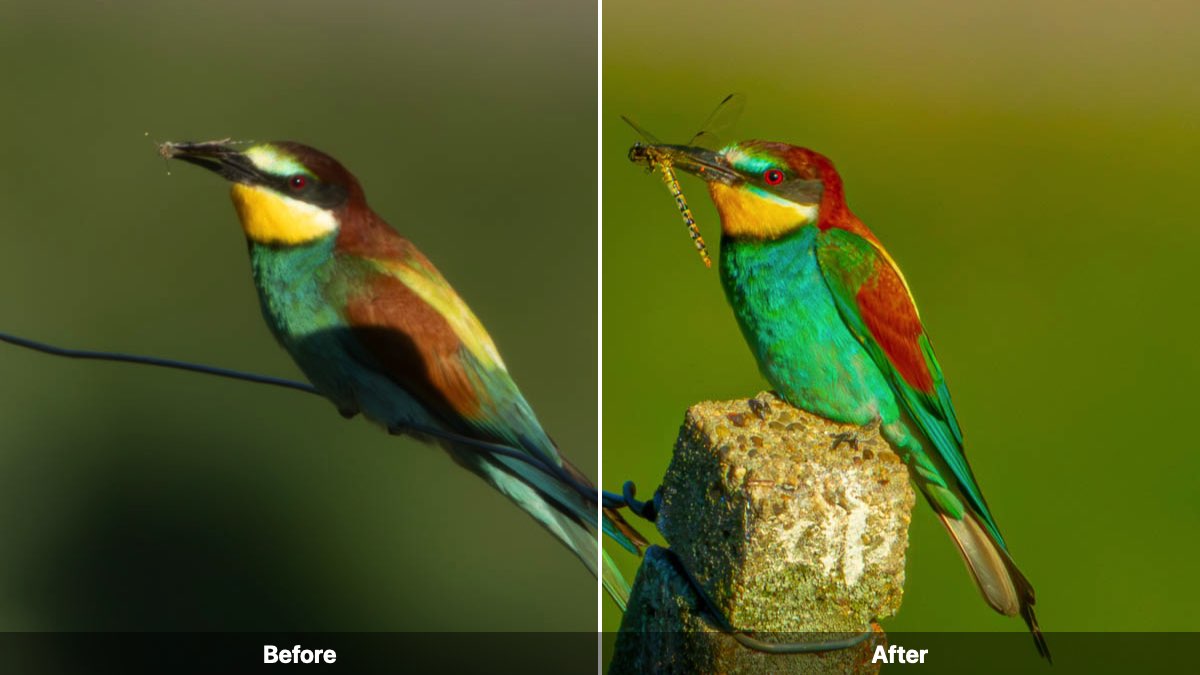
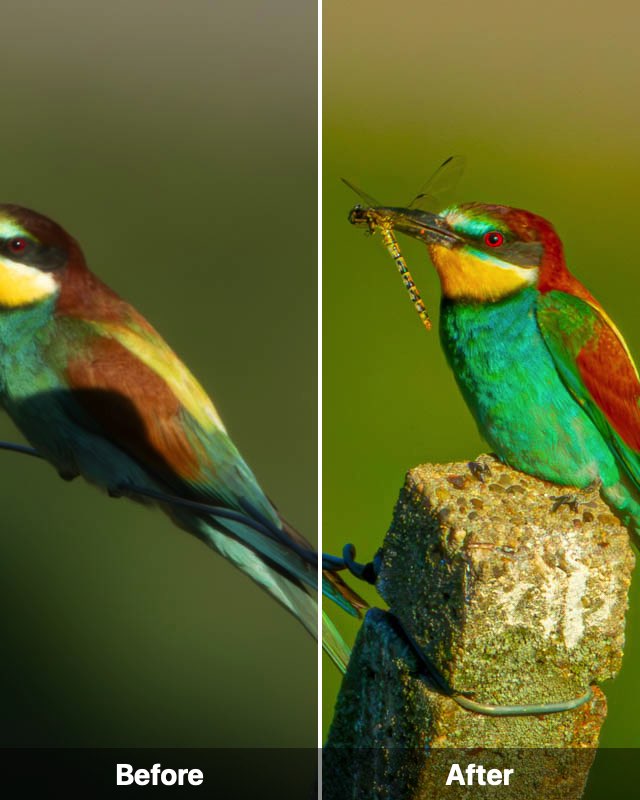
With “One image” the finished comparison image …_before-after.jpg is created in addition — here the three layouts and two of the formats, real exports from 17 October 2026 (bee-eaters):

Step by step mode
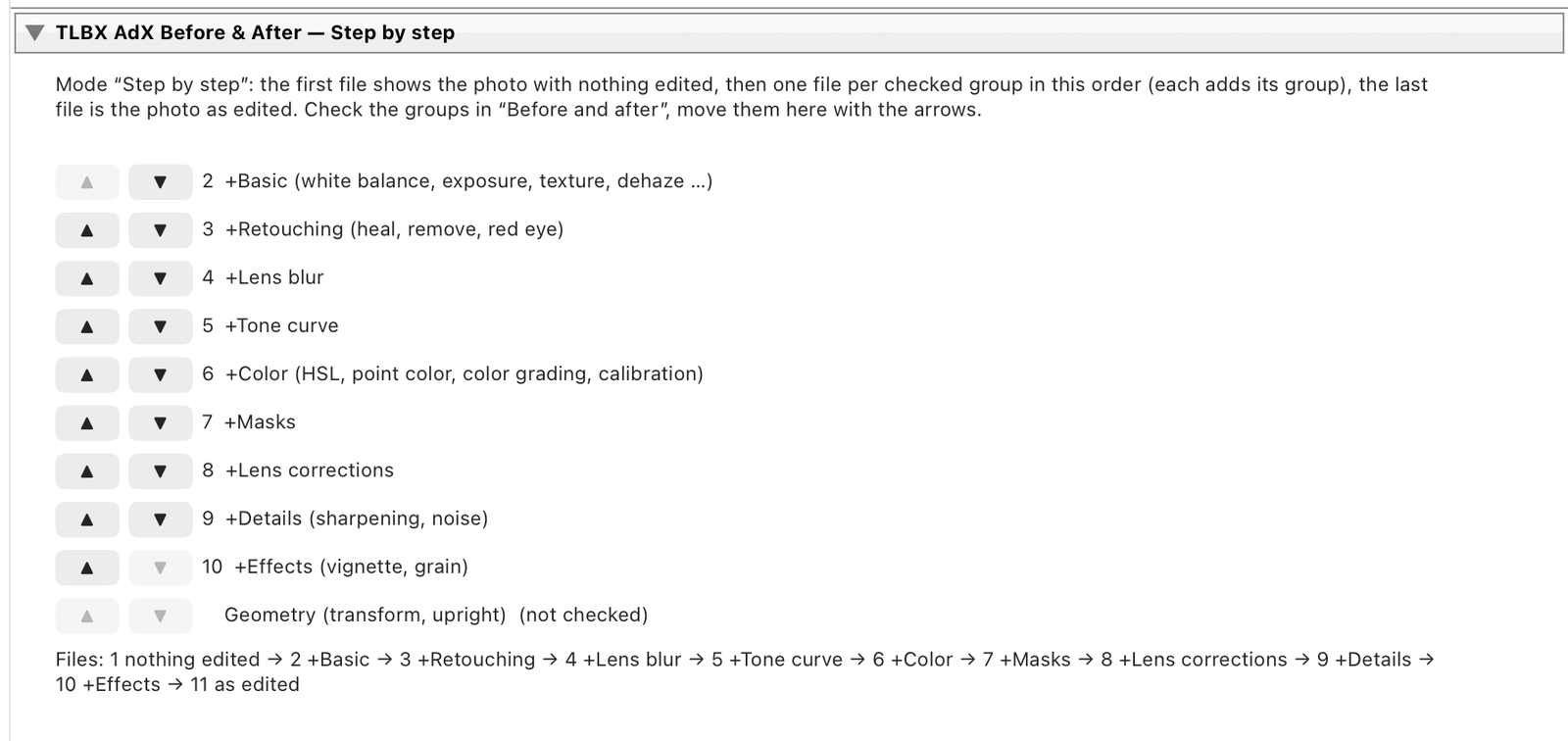
Each photo yields an image sequence: the first image is the photo without edits, then one image is added per checked group, the last one is the finished photo. In the Step by step tab you set the order of the groups with the arrows. The files are named _01, _02 …; “reverse” flips the numbering, then _01 is the finished photo. Below, the real result as an image sequence.
 _11 · as edited
Example: the real image sequence of an export with “Step by step” (export of 17 October 2026, nine groups, geometry unchecked) — eleven files, _01 without edits to _11 as edited. Click a link in the chain to show that stage large.

Step comparison mode
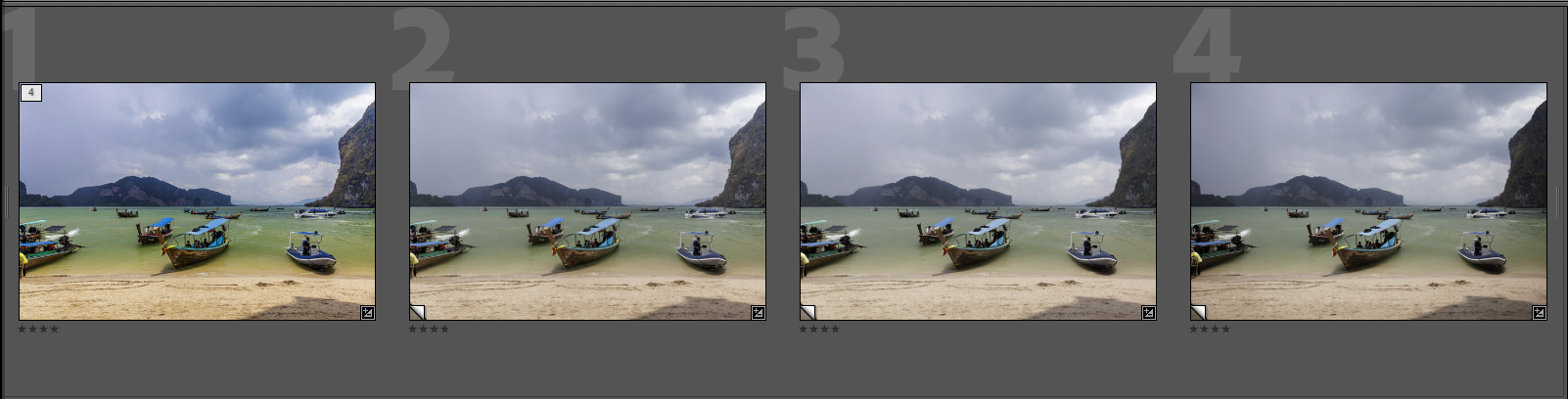
The virtual copies of a photo are its stages. For that you create one virtual copy per editing stage (right-click › Create Virtual Copy) and keep editing each copy. For the export, one of the photos of the family is enough — master or a copy, whichever: the plugin always exports the whole family. One image per stage as it is edited (the master and every copy), plus the original with the before choice from step 3. Three copies therefore give five files, _01 to _05. The Order field decides what becomes _01: by default the last copy, then backwards to the master, finally the original — or the other way round.

Lightroom settings as usual
Everything else in the export dialog is the normal Lightroom export and stays identical to every other export: Export location, File naming, File settings (format, quality, colour space), Image sizing, Metadata and Watermarking. The plugin changes none of it.
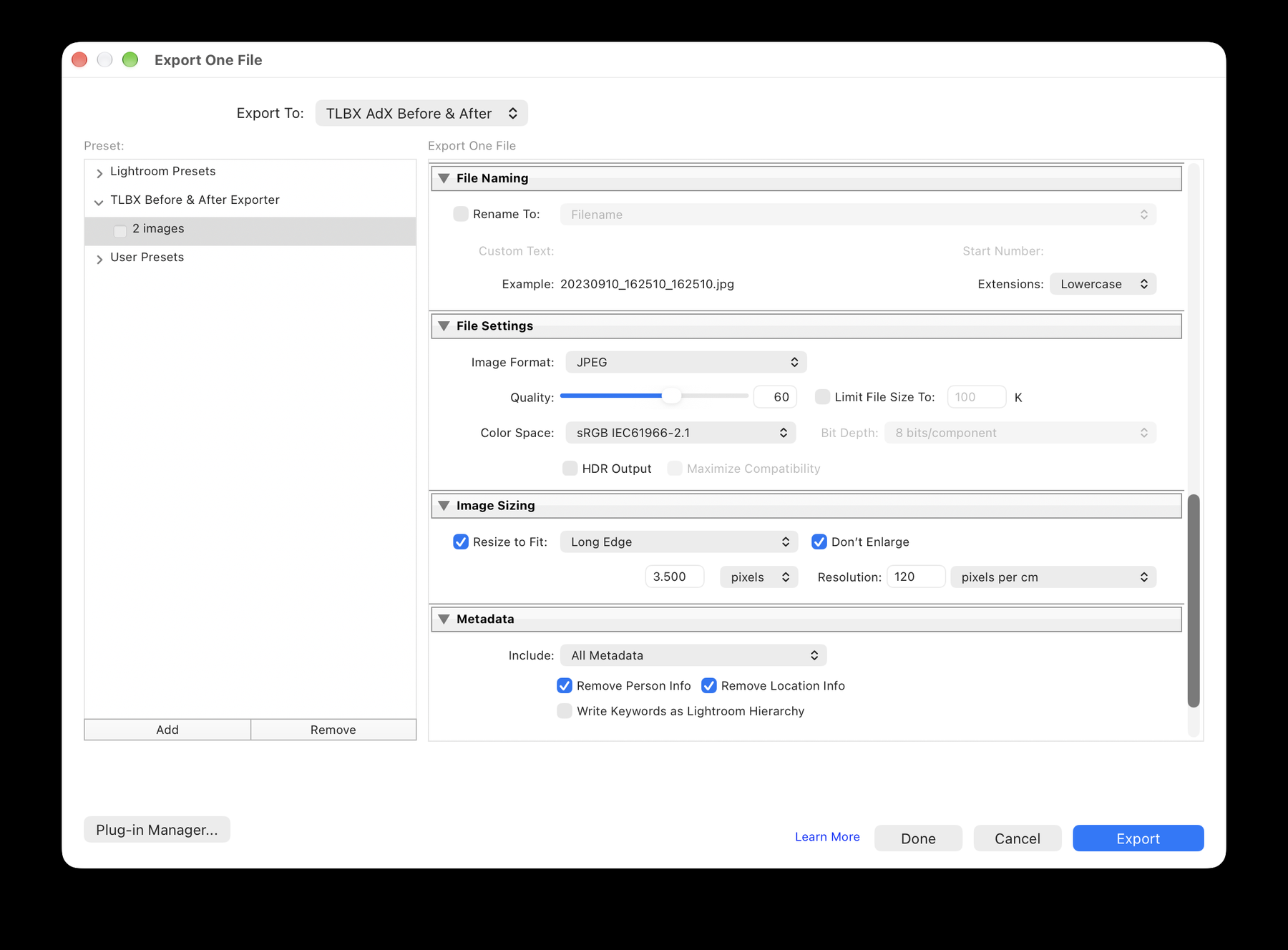

Export
Click Export. Lightroom first renders all after images, then the before export runs with its own progress bar. At the end the plugin reports “n photos, m files”. The files are in the chosen folder, named after your scheme plus suffix or number — the result of the Before / After mode is shown in step 4.
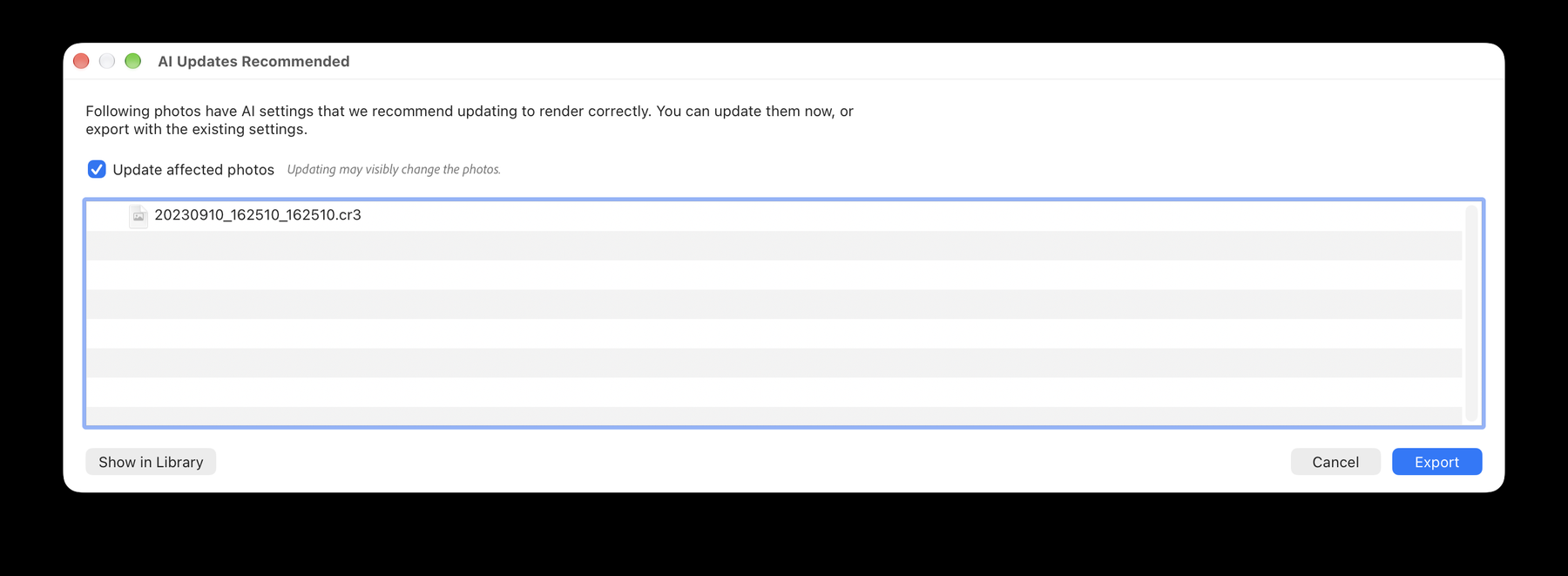
This message belongs to Lightroom Classic, not to the plugin. It appears for photos with AI features — AI masks, generative remove, lens blur — when Lightroom has not yet recalculated its AI data for the current edit state. During the before export that is normal: the plugin briefly sets other states, Lightroom recalculates.
Best update beforehand: open the photo once in the Develop module and let Lightroom run the AI update it offers. Then everything is already settled at export time and the message usually stays away. If it appears anyway, leave “Update affected photos” unticked and click Export — Lightroom exports with the existing settings and nothing recalculates in between while rendering.
With masks, export without the GPU: Lightroom, Preferences › Performance › “Use GPU for export” off. With the GPU, Lightroom renders single tiles in wrong colours for masked photos after a change of lens corrections or geometry — without it the images are clean, and the export is often even faster. The plugin shows a warning in the export dialog when the setting is on.
For photos with masks, the plugin gives Lightroom a few seconds of rest before each render (adjustable in the Plug-in Manager under Settings, default 3 seconds) and renders the after once more at the end. That keeps the stages free of blotchy tiles.